Customising event images after event creation
This guide explains how to upload and customise different images for the thumbnail, header, and sharing image once an event has already been created.

Adding an image to the thumbnail will automatically apply it to both the event header image and the sharing image
If you'd like to customise each image individually, you can do so from the event dashboard after saving the event.
To customise your images:
1. Go to your Event dashboard
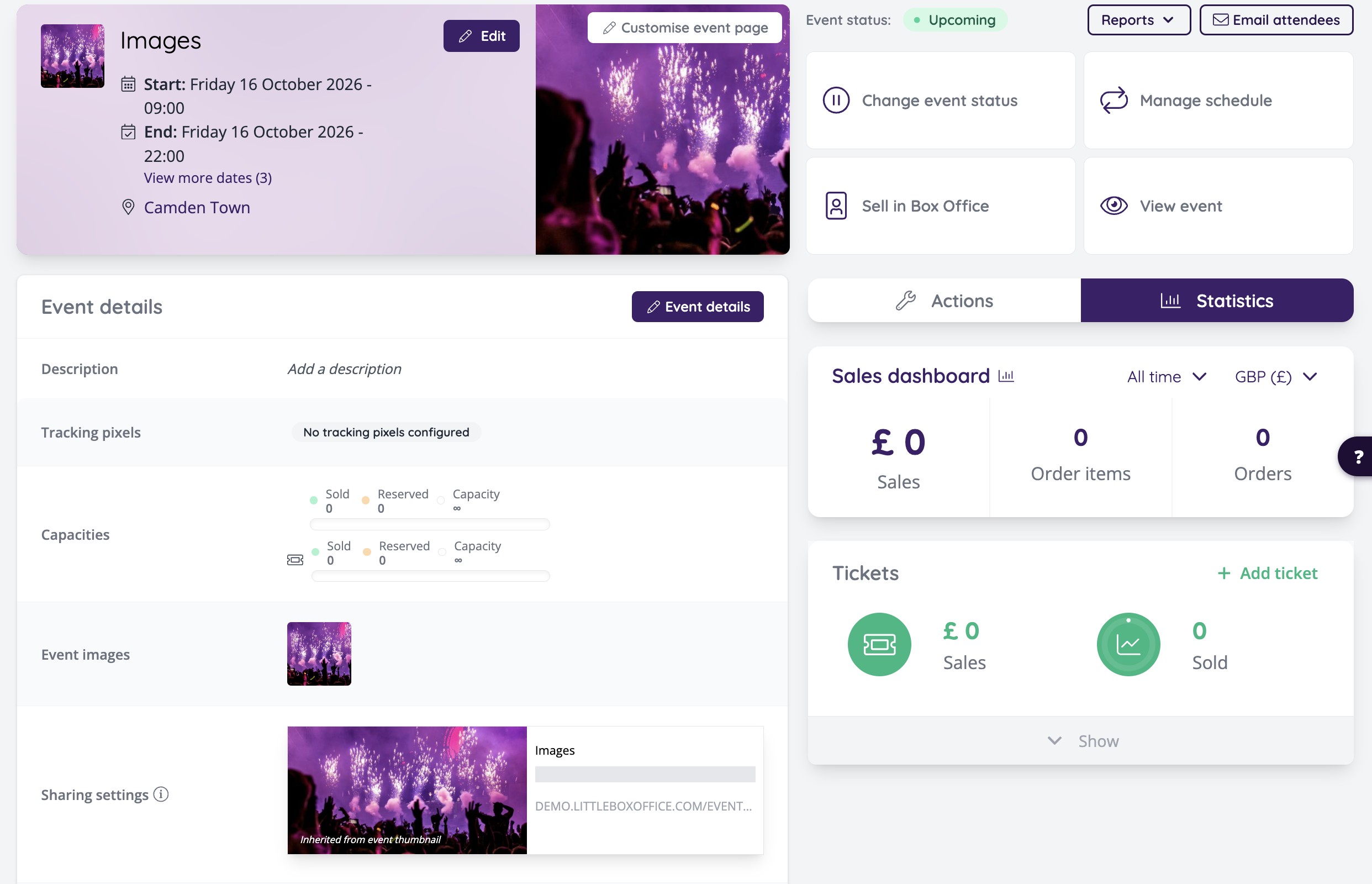
2. Click Edit Details
3. Click the pencil icon next to:
Event Images (for Thumbnail & Event Header)
Event Images (for Thumbnail & Event Header)
Sharing Settings (for Sharing Image)
4. Select Change
For Thumbnail & Event Header
For Sharing Image
5. Upload the image you'd like to use for that section
Related Articles
Customising schedule images
This guide explains how to upload and customise images used in different parts of your event schedule, including the thumbnail, header, and sharing image. Accessing Schedule Settings 1. Go to the Event Dashboard. 2. Select Manage Schedule from the ...Create a single event
The step-by-step process of creating an event, from entering basic details to setting up tickets and finalising the event for sale. From the left menu go to Events > Create event STEP 1 - EVENT INFORMATION 1. Enter the Name and Description of the ...Creating scheduled events
This article explains how to create scheduled or repeated events, including when to use the scheduling tool and when to copy an event. Step 1: Create your first event Start by creating your initial event. Before adding any repeats, ensure all event ...Uploading images when creating an event
This guide explains how to upload an image when creating a new event, and outlines the specifications required to ensure it displays correctly across all placements (thumbnail, header, and sharing image). To add an image to a new event: 1. Navigate ...Video: Schedules (grouped events)
This video covers what schedules are, when to use repeating schedules versus mixed event schedules, how to create scheduled events, how to add existing events to a schedule, how to use the copy event function, and how schedule settings affect the ...